If your air purifier keeps disconnecting from wifi, the app shows “offline”, the schedule stops responding, and the unit sits in the corner looking fine. Most of the time the cause is something small in the room or in the router settings, and you can find it without buying anything.
This guide goes in order, from the checks that take a minute to the ones that take an evening. Stop as soon as the purifier stays connected for a few days.
Is It Actually Offline? What the App Is Telling You
“Offline” in the app means the app cannot reach the purifier through the maker’s servers. The purifier itself may be running normally, so start by separating the two.
Walk over to the unit and look at it:
- Is the fan running and the display lit?
- Is there a Wi-Fi icon or indicator light, and does it match what the manual says is “connected”?
- Do the buttons on the purifier still change the fan speed?
If the unit works but the app says offline, close the app completely and reopen it, then pull down to refresh the device list. Apps sometimes show a stale status for a few minutes after the purifier reconnects.
Next, check whether the problem is the purifier or your whole network. Try loading a web page on your phone while connected to your home Wi-Fi. Then check another smart device, such as a plug, a speaker or a TV. If those are also struggling, the problem is the internet connection or the router, and the purifier is just the first thing you noticed.
It is also worth a quick look at the maker’s support page or social accounts for an outage notice. When a company’s servers go down, every purifier shows offline at once, and nothing you do at home will change that.
Start With the Room: Distance, Walls and Where the Purifier Sits
Wi-Fi gets weaker with distance and with every dense thing it passes through. Brick, concrete, plaster over metal mesh, tile bathrooms, large mirrors, and big appliances all weaken the signal more than drywall does. A purifier in a back bedroom, two walls and a hallway from the router, is a common setup for dropouts.
A simple test: stand next to the purifier with your phone and check the Wi-Fi signal bars. Then stand next to the router and compare. If the bars drop to one or none at the purifier, that is your answer.
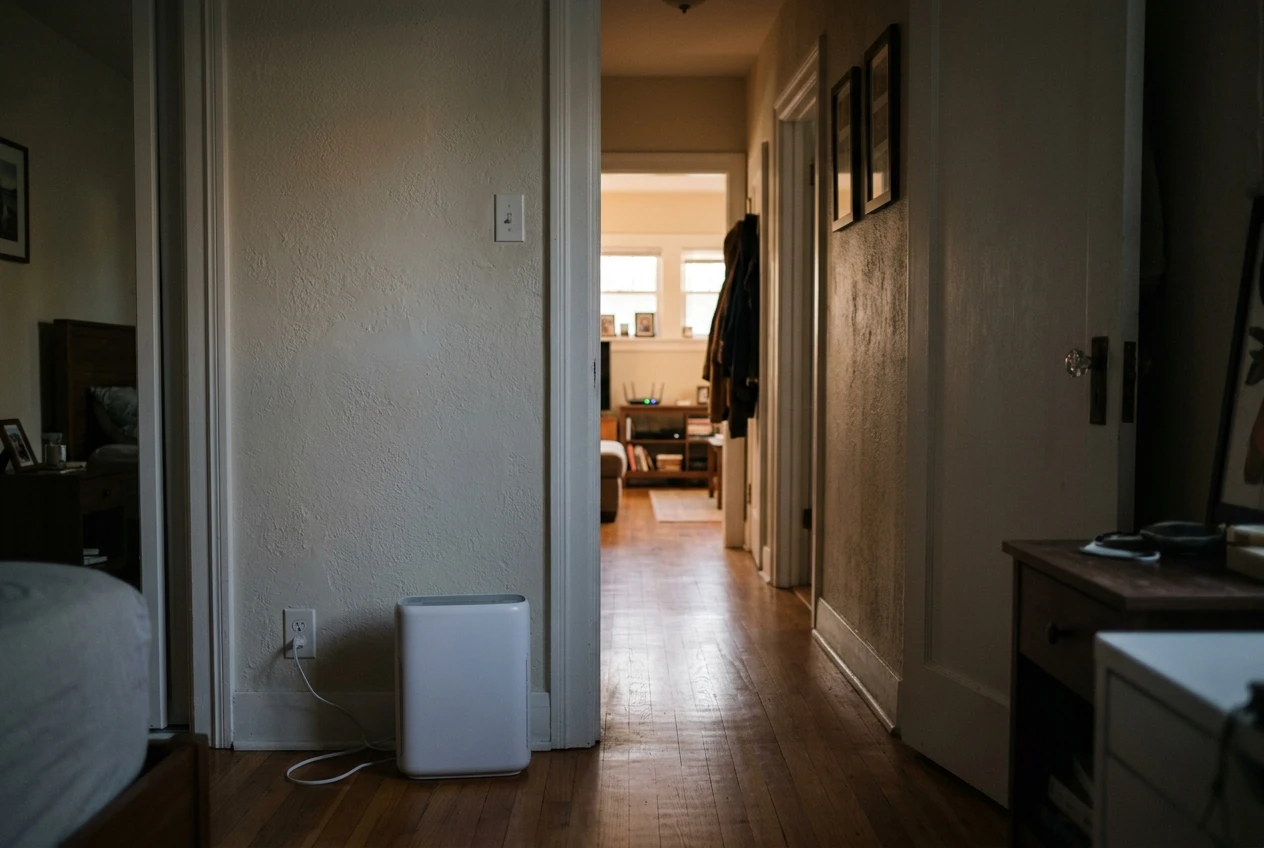
You can test this without rearranging the house. Run an extension cord and place the purifier in the same room as the router for a day. If it stays connected there, the cause is signal strength, and you have a few free options:
- Move the router to a more central spot, or lift it off the floor and out of a cabinet.
- Move the purifier a few feet toward the router, away from metal shelving and out from behind furniture. Purifiers need open space around them for airflow anyway.
- Keep it away from a microwave, a cordless phone base, or a baby monitor, which can interfere with the 2.4 GHz band.
If moving things is not enough, a Wi-Fi extender or mesh system is the paid fix. Rule out every free option before spending on one, because many of these dropouts end with a simple position change.
The Wi-Fi Band Problem: Why Many Purifiers Only Like 2.4 GHz
Most modern routers broadcast two bands: 2.4 GHz and 5 GHz. The 5 GHz band is faster but covers less distance. Many smart home devices, including a lot of smart purifiers, only connect to 2.4 GHz. Check your purifier’s manual or the maker’s support page for the bands it supports.
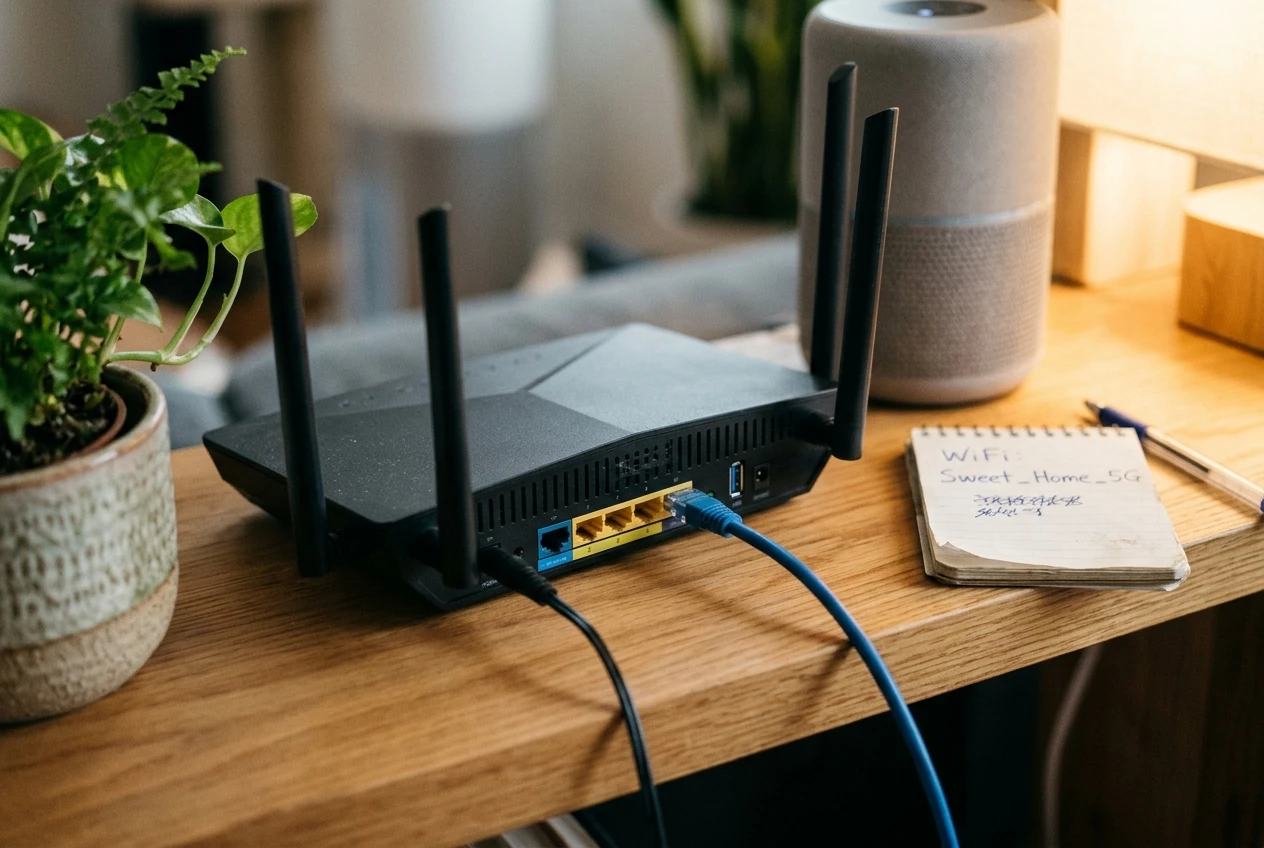
Trouble starts when the router gives both bands the same network name. Your phone may join the 5 GHz side during setup, and the purifier may then fail to pair, or pair and drop later. Some routers also move devices between bands on their own, which can knock a 2.4-only device off.
If your router app or settings page allows it, these changes help:
- Give the 2.4 GHz band its own name, such as your usual name with “-2.4” at the end.
- Connect the purifier to that network only.
- If you cannot split the bands, switch 5 GHz off temporarily, pair the purifier, then switch it back on.
Two other settings are worth a look. Apartment buildings often crowd the 2.4 GHz band with neighbors’ networks, so if your router has a channel setting, try the automatic option or a different channel. And some older devices struggle with the newest security mode, so a router offering a mixed WPA2/WPA3 option is usually the safer choice. Changing router settings affects every device in the house, so write down what you change.
After a Router Change, Password Update or Power Cut: Reconnecting Cleanly
A purifier remembers the network name and password it was given during setup. If you changed the password, replaced the router, or the router came back with a different network name, the purifier keeps trying the old details and keeps failing.
The same can happen after a power cut. The purifier restarts quickly, but the router takes several minutes to come back. The purifier may try to connect, fail, and then wait or stop trying.
Work through these in order:
- Restart the purifier. Unplug it, wait 30 seconds, and plug it back in.
- Restart the router. Unplug it for 30 seconds, plug it back in, and give it five minutes before judging the result.
- Check the purifier’s Wi-Fi details. If the password or network name changed, you need to put the purifier into pairing mode and set it up again. The button combination differs by model, so use the manual.
- Re-add it in the app while your phone is on the same network and band the purifier will use.
Restarting the router is not a magic cure, but it clears up a surprising number of connection problems, and it costs nothing.
Update the App and Firmware, Then Check for Account or Phone Settings in the Way
Old app versions can lose track of devices, and old firmware on the purifier can have connection bugs that the maker has already fixed. Update the app from your phone’s store first. Then open the purifier’s settings in the app and look for a firmware or software update option. If one is waiting, leave the purifier plugged in and do not unplug it until the update finishes.
If the purifier is connected but the app still shows offline, the problem may be on your phone or account:
- Battery saver or low-power mode can stop the app from refreshing in the background.
- A VPN or private DNS setting can stop the app from reaching the maker’s servers.
- Permissions: on many phones, the app needs location access to find Wi-Fi during setup, and iPhones can ask for local network access. If you declined those requests, the app may not work properly.
- Account problems: try logging out and back in. If the app asks for a region or country, make sure it matches the one you used when you first registered.
Your router can get in the way too. Look for parental controls, a device limit, a guest-network setting, or MAC address filtering. If the purifier is on a guest network that isolates devices, the app on your phone may not be able to see it.
Last Resorts: Resetting the Purifier, Re-Pairing It, and When to Contact the Maker
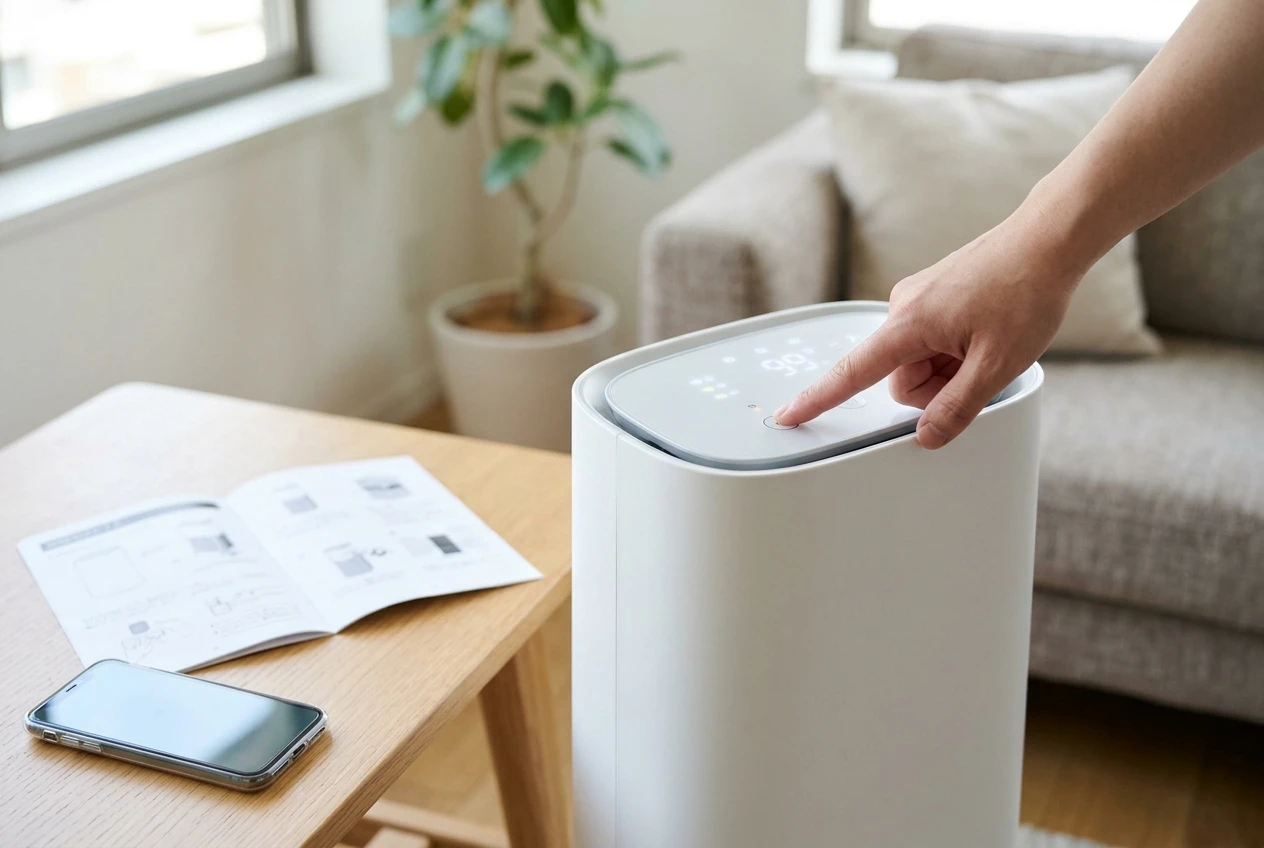
If nothing above has worked, a factory reset gives the purifier a clean start. Before you do it, note your fan speed preferences, schedules, and any names you gave the unit, because a reset usually clears them. It may also reset the filter-life counter, so write down roughly how long the current filter has been in use. The manual will tell you how to reset your model, and it often involves holding a button for several seconds.
After the reset:
- Remove the old purifier entry from the app so you don’t end up with a duplicate.
- Put your phone on the 2.4 GHz network the purifier will use.
- Put the purifier in pairing mode and add it again from scratch.
- Keep it close to the router for the first day. If it holds the connection, move it back and see whether it still does.
If it still drops, try one more test: pair it to your phone’s hotspot. If it stays connected there, the purifier is probably fine and the cause lies with your router or the room. If it fails on the hotspot as well, the purifier’s Wi-Fi hardware may be faulty.
At that point, contact the maker. Give them the model, the firmware version, your router brand, which band you used, and the steps you have already tried. That saves you a round of repeated questions. If the unit is new, check the warranty and the retailer’s return window before time runs out.
When Spotty Wi-Fi Doesn’t Matter, and When It’s a Sign to Rethink the Purchase
An air purifier still cleans the air when it is offline. The fan, the filters and the buttons on the unit all work without Wi-Fi. What you lose is the extra layer: remote control, voice commands, app alerts, and in some models, schedules that run from the cloud. It is worth checking whether your schedules run from the unit itself or need the connection.
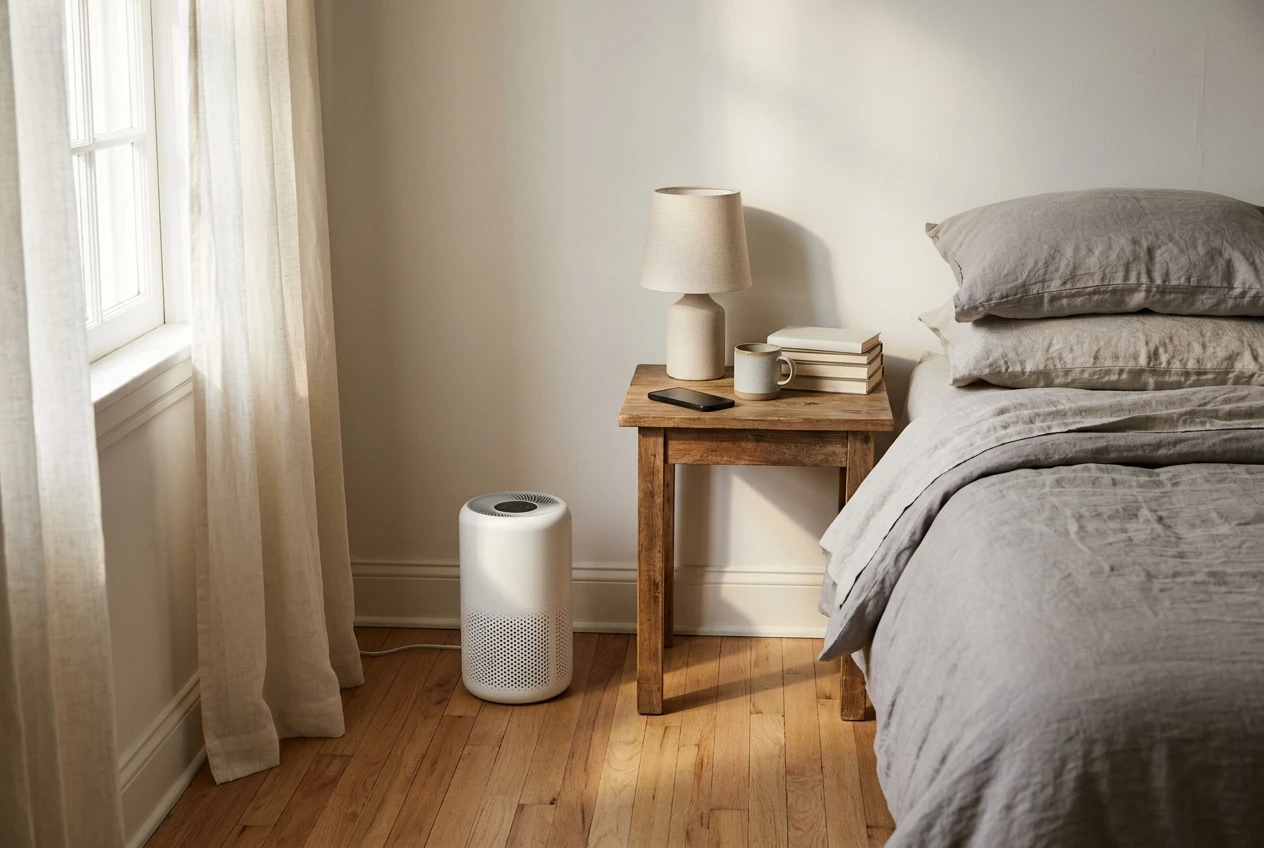
For many people, that loss is minor. If you set the speed once and leave the purifier running in the bedroom, an app that occasionally shows offline is an annoyance, not a failure. In that case it is reasonable to stop troubleshooting after the first few checks.
It becomes a bigger problem if you bought the purifier for the automation. If you rely on auto mode reacting to air quality, on controlling it while you are away, or on the filter reminders in the app, and it drops every week, the smart features are not giving you what you paid for. Weigh that against the return window before it closes.
Two of my other guides can help you decide. One looks at what the extra money for a smart model actually buys compared with a basic HEPA unit. The other explains how to pick between Coway Airmega and Blueair by room size, filters and tolerance for apps. If a purifier keeps dropping its connection, that is a reasonable moment to ask whether you need smart features at all, or whether a simpler unit would suit your room better.
If you would like short, plain-English troubleshooting tips and filter maintenance reminders, join the email list. They are meant to stop small problems like this from turning into wasted money.